The Sidebar will allow you to quickly access your contacts and their details, your communications history with a specific contact, list of tasks that you planned to do and a list of attachments exchanged between you and specific contacts.
There are four sections that make up the Sidebar: Contact details, Agenda, Invitations and Calendar. It can also show Threads for Chat conversations.
You can hide the Sidebar by clicking on the arrow near the right edge of the bar.
Just click on the arrow to hide the sidebar.
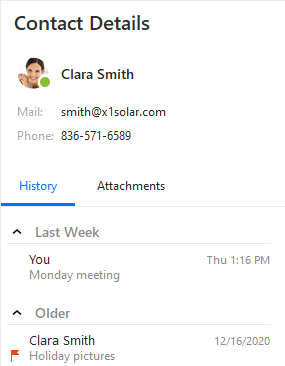
Contact Details window provides you with quick access to contact details of a selected contact that include your contact's email address, mobile/telephone number, skype contact details, and chat message contacts.
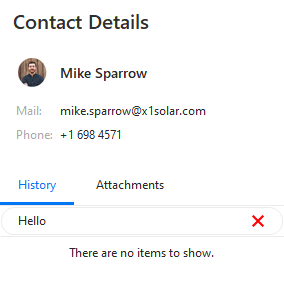
Search - Just start typing and search bar will appear. While using the search bar, you can search for all types of messages (i.e. mails, chat messages) that you have exchanged with your contact in the past. You can switch between History and Attachments by simply clicking on the proper button.

History panel is called so because it gathers all your written conversations with the contact. It includes Emails, Chat messages and also Skype chat messages into one chronological communications log. And thereby provide you with a holistic sense of your communications with that particular contact.
Attachments panel contains all the attachments that are attached in the emails exchanged between you and the contact. Attachments are sorted in a chronological order, which you can customize(ascending/descending) in the Attachment history Options.
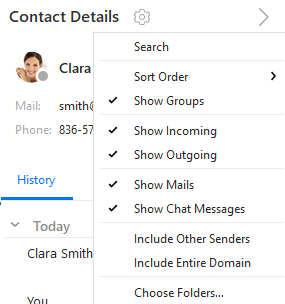
Contact Details settings -You can customize your Contacts Details settings simply by left-clicking on the Options button. This options button  will appear by hovering with your mouse cursor over the area next to the Contact Details header. You can choose the manner in which you would like to sort the order of the messages (descending/ascending) and you can also adjust what type of messages (mails, chat messages, skype calls) you would like to display or hide. By checking the option Include Other Senders you can adjust if you want to include the third party of the conversation (f.e. emails , where other participants are included in Bcc or Cc of the particular email) and by checking the option Include Entire Domain you can adjust displaying of all emails that may have different name of sender/addressee, but the same domain in the particular email address. You can select Choose Folders... to select folders from which you would like the contacts to be displayed.
Agenda section provides you a quick review of the tasks that you planned to do, upcoming birthdays, upcoming events and email messages marked as flagged. All those items are sorted in the order of the upcoming date, i.e. the most up-to-date items will be always on top. The Agenda also uses the 'Getting Things Done' methodology for your tasks, read more about it in the Task List Display.
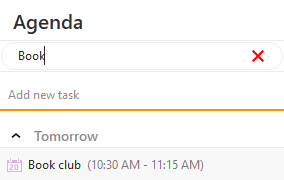
Search bar - you can use the search bar for searching within your tasks and events by simply starting to write and the search query will appear. Simply enter the "key word" of the item that you want to find and the requested item will appear.
Adding new task - You can add new tasks directly from the sidebar. First and foremost, write the title of the new tasks in the field (lower arrow in the picture) and then press enter. Newly created task will appear in the "Date:Today" section. By double-clicking on the task the window with possible editing of the newly created item will appear.
For creating and editing tasks see Creating and Editing of Tasks for more detailed description.
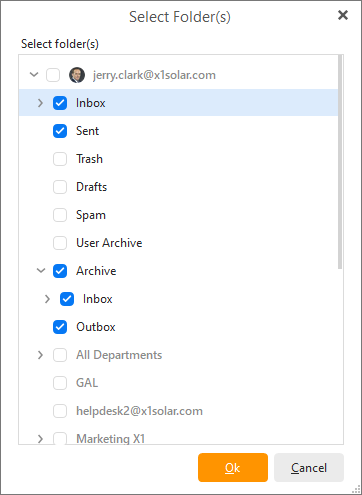
To choose folders from which you would like to display upcoming events, birthdays, tasks and flagged emails, simply hover next to the Agenda title and click on the cogwheel icon that pops up. Context menu will appear and your next step is choose the option Choose Folders... and a window with list of various folders will appear as you can see in the following picture.
Moreover, you can choose the time horizon in which the displayed upcoming birthdays and events will be shown. This time horizon can be changed by selecting various points of time from the context menu, again the one which is evoked via the cogwheel icon next to the Sidebar section title.
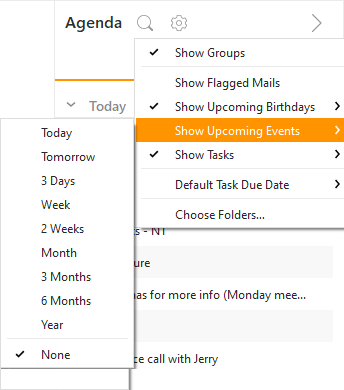
Show of Flagged Mails, Upcoming Birthdays, Upcoming Events and Tasks is active by default.
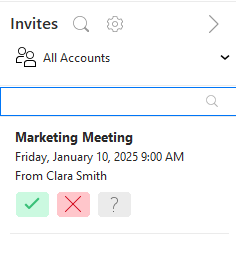
This section will automatically take note of the invites in your mailbox and show them in this section, so you can quickly resolve all meeting invitations in one place and not scroll through your mailboxes to find them. You can also list invites by account or use the search next to the title to look up specific events.
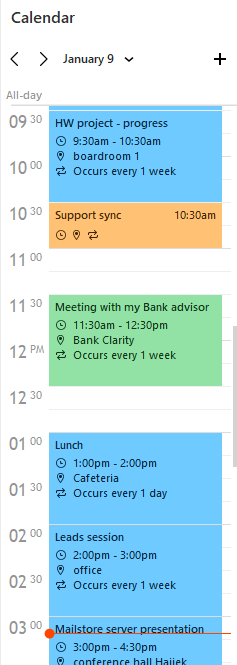
The Calendar sidebar can show a single-day in any section - so you can have your emails open while checking your daily agenda on the side. The red line will show you current time to see which event is near.
Using the Settings button next to the title you can select which calendars should be taken into account in this view.
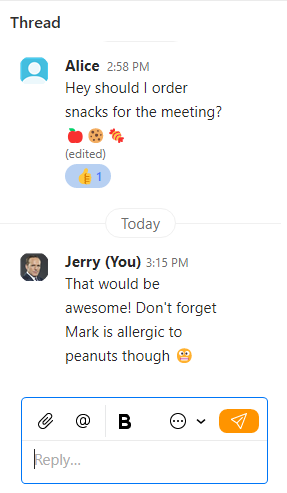
The thread sidebar will only pop up when you're in the Chat section and decide to open a thread - this way you can keep the main conversation in the middle section, and view or reply to the side-conversations in the separate thread on the right.